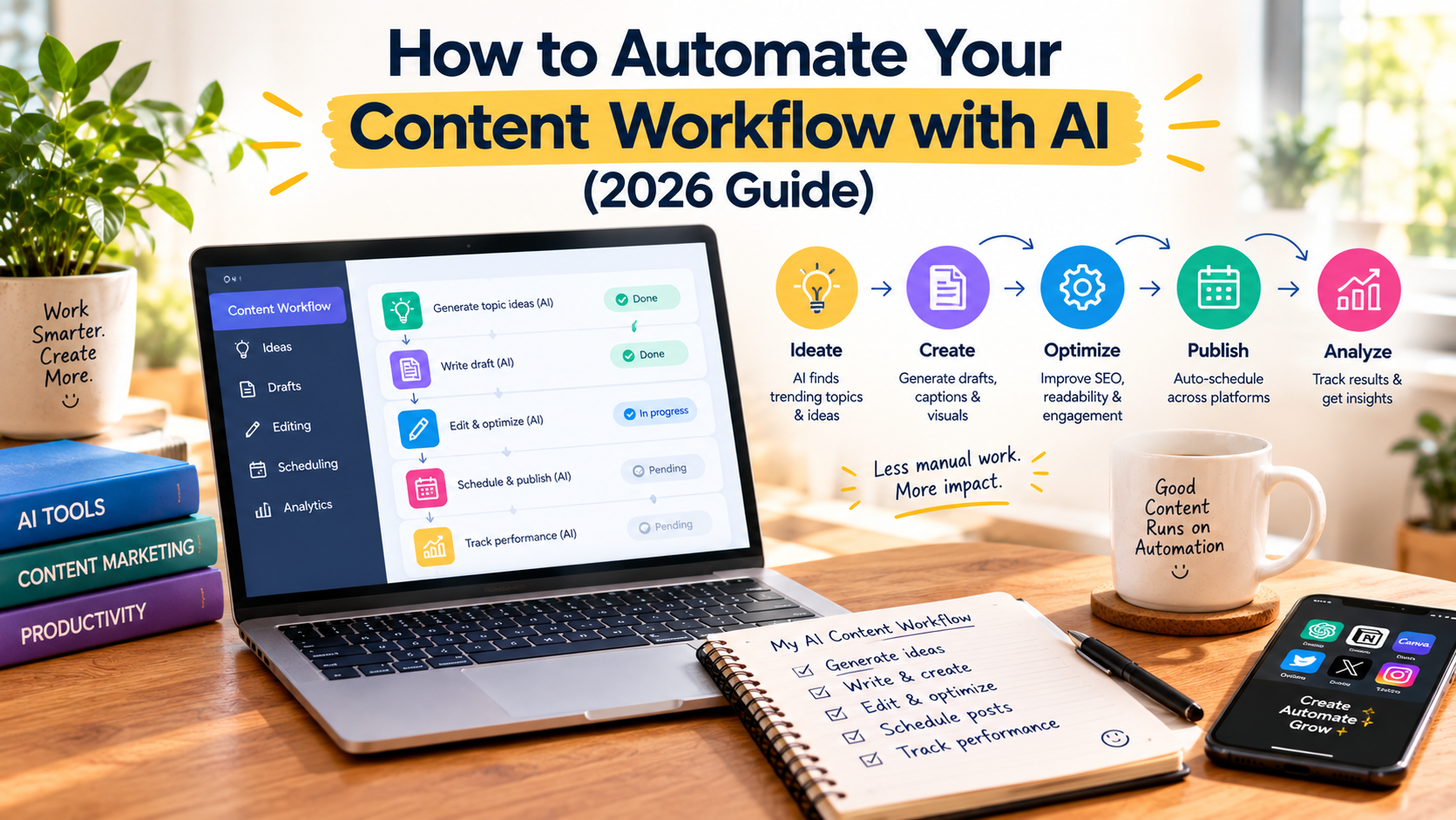
If you create content for clients or your own business, you already know the writing is only part of the job. There’s the research, the brief, the formatting, the upload, the images, the social posts, the follow-up emails, and the monthly report. Learning how to automate your content workflow with AI means handing those repetitive steps to software so your time goes to the work that actually needs you.
The good news is you don’t need to be a developer. Tools like Zapier, Make, and n8n connect the apps you already use, and AI steps within them can automatically summarize, draft, reformat, and tag content.
The catch is that “automated” doesn’t mean “autopilot.” The fastest way to wreck a content operation is to let AI publish without a human check. This guide shows you how to build a workflow that runs itself where it should, and stops for you where it must.
What Is an AI Content Workflow?
A content workflow is the chain of steps between an idea and a published, promoted piece of content. An AI content workflow automates parts of that chain using two kinds of tools working together:
- Automation platforms move information between apps. When something happens in one app (a trigger), they do something in another (an action). Example: when you mark a row “Approved” in a spreadsheet, create a draft post in WordPress.
- AI models transform information along the way. Example: take a topic and keyword from that spreadsheet row and turn them into a content brief.
Put them together, and you get a pipeline. Content moves from stage to stage automatically, with AI doing the grunt work in between.
Quick Comparison: Content Automation Tools
These three platforms power most AI content workflows. All three offer free options, but their limits differ significantly.
| Tool | Free Option | Best For | Watch Out For |
|---|---|---|---|
| Zapier | 100 tasks/month, two-step Zaps (one trigger, one action) | Beginners who want the most app integrations and the easiest setup | Multi-step workflows need a paid plan; AI steps can use more than one task |
| Make | 1,000 credits/month, 2 active scenarios | Visual, multi-step workflows on a small budget | AI steps on the free plan use Make’s built-in AI and cost credits based on usage; connecting your own OpenAI or Claude account requires a paid plan |
| n8n | Free Community Edition when you self-host | Technical users who want unlimited runs and full control | You need to set up and maintain your own server |
Which should you choose? Start with Make if you want multi-step workflows for free. Start with Zapier if you want the simplest setup and the widest app support. Consider n8n only if you’re comfortable managing a server.
Step 1: Map Your Current Workflow
Before you automate anything, write down every step your content goes through today. Then mark each step as one of three types:
| Workflow Stage | Automate? | How |
|---|---|---|
| Idea capture | Yes | Send ideas from forms, emails, or notes into one content calendar |
| Research and briefs | Partly | AI drafts a brief from a topic and keyword; you review it |
| Drafting | Partly | AI produces a first draft; a human rewrites and adds expertise |
| Editing and fact-checking | No | Human only. This is where quality and accuracy come from |
| Formatting and upload | Yes | Push approved drafts to your CMS as unpublished drafts |
| Images and alt text | Partly | AI suggests alt text and image ideas; you approve |
| Social promotion | Mostly | Auto-generate social drafts when a post goes live |
| Reporting | Yes | Pull monthly performance data into a sheet with an AI summary |
Rule of thumb: Automate anything repetitive and rule-based. Assist anything creative. Keep anything that requires judgment, accuracy, or accountability in human hands.
Step 2: Build a Central Content Hub
Every automated workflow needs one source of truth: a single place where each piece of content lives and moves through stages. For most freelancers, that’s a simple spreadsheet or database with these columns:
- Title / topic
- Target keyword
- Status (Idea → Brief → Drafting → Editing → Approved → Published)
- Due date
- Brief link, draft link, and live URL
Google Sheets, Airtable, and Notion all work well and connect to Zapier, Make, and n8n. The Status column is the key. Changing it is what triggers your automations.
Step 3: Automate Briefs and Research
This is the first place AI saves serious time.
Example workflow:
- Trigger: A row’s status changes to “Brief” in your content calendar.
- Action: An AI step takes the topic and keyword and generates a brief that includes search intent, a suggested outline, questions to answer, and internal links to include.
- Action: The brief is saved to a Google Doc, and the doc link is written back to your calendar.
Prompt for the AI step:
Create a content brief for an article targeting the keyword “[keyword]” about [topic] for [audience]. Include: the likely search intent, a suggested H2/H3 outline, 5 questions readers want answered, and 3 angles competitors probably miss. Do not write the article.
Always review the brief before drafting. AI can misjudge search intent, and a bad brief produces a bad article.
Plan note: This workflow has more than one action, so on Zapier it requires a paid plan. On Make’s free plan, it fits in a single scenario. The AI step draws on your monthly credits and the free plan’s weekly AI usage limit, so start with a few briefs a week and watch your usage.
Step 4: Draft with AI, Edit as a Human
You can automate the first draft, but not the final one.
A common setup: when a brief is approved, an AI step drafts the article in your brand voice and saves it to a new doc. Then the workflow stops and waits for you. Full-length drafts use far more AI capacity than short briefs, so this step is usually where free plans run out. Many freelancers draft directly in ChatGPT or Claude instead and automate everything around it.
To get drafts that actually sound like you, set up your brand voice first. Our guide to training AI on your brand voice walks through it step by step.
Then do the human work: rewrite the introduction, add real examples and experience, verify every statistic, and cut anything generic. If you’re unsure where the line between AI and human work should be drawn, our breakdown of AI copywriting vs. human copywriting covers what each does best.
Why this matters for SEO: Google’s guidance says generative AI can help with research and structure. It also says using AI to generate many pages without adding value for users may violate its scaled content abuse policy. The human editing step is what keeps your content on the right side of that line.
Step 5: Automate Publishing Prep
Once a draft is edited and approved, automation can handle the tedious upload work.
Example workflow:
- Trigger: Status changes to “Approved.”
- Action: An AI step generates a meta description, suggested tags, and alt text for your featured image.
- Action: The content is sent to WordPress as a draft, not a published post. Zapier’s WordPress “Create Post” action lets you set the post status to Draft.
Always publish drafts manually. A final look in your CMS catches formatting glitches, broken links, and missing images that automation won’t notice. It takes two minutes and prevents embarrassing mistakes.
Step 6: Automate Distribution and Promotion
Distribution is where automation shines, because the work is repetitive and the rules are clear.
Example workflow:
- Trigger: A new post is published. In Zapier, use the WordPress “New Post” trigger with the post status set to Published, or watch your site’s RSS feed.
- Action: An AI step writes platform-specific social posts: a LinkedIn post, an Instagram caption, and a short X post.
- Action: The posts are sent to your scheduler for review. Buffer’s Zapier integration, for example, can save them as drafts or ideas instead of publishing them.
- Action (optional): A newsletter blurb is added to your email platform’s next campaign draft.
For prompts and platform-by-platform tips, see our guide on how to use AI for social media content creation.
Step 7: Automate Reporting
Monthly reporting is pure busywork, and it’s perfect for automation.
Example workflow:
- Trigger: A schedule, such as the first day of each month.
- Action: Pull your performance data into a spreadsheet, using your analytics tool’s integration or a scheduled export.
- Action: An AI step summarizes the month: top posts, biggest drops, and three suggested topics based on what performed.
- Action: The summary is emailed to you (or your client).
Treat the AI summary as a starting point. Check its conclusions against the actual numbers before sharing them.
3 Ready-to-Build Content Automation Recipes
Here are three starter workflows, from simplest to most advanced:
| Recipe | Trigger | Actions | Works on Free Plans? |
|---|---|---|---|
| Idea catcher | New form submission or email with a specific label | Add a row to your content calendar | Yes (two-step, fits Zapier free) |
| Auto-brief | Calendar status changes to “Brief” | AI generates brief → save to doc → add link to calendar | Make free (watch AI credit usage), or Zapier paid |
| Publish-and-promote | New published WordPress post or RSS item | AI writes social posts → send to scheduler as drafts | Make free (watch AI credit usage), or Zapier paid |
Start with the idea catcher. It’s the easiest to build, it uses no AI credits, it teaches you how triggers and actions work, and it immediately organizes the chaos of scattered ideas.
Where to Keep Humans in the Loop
Good automation includes deliberate stopping points. Build approval gates at these moments:
- Before drafting: Approve the brief so AI doesn’t write the wrong article.
- Before publishing: Edit, fact-check, and publish manually.
- Before promoting: Review social posts before they go out, especially anything with statistics or claims.
- Before client delivery: Never send AI output directly to a client without reviewing it.
An easy way to build gates: have automations stop at a status like “Needs Review,” and only continue when you change the status.
Common Mistakes When Automating Your Content Workflow
Mistake 1: Automating a Broken Process
Automation makes a messy workflow run faster, not better.
The Fix: Map and simplify your workflow first (Step 1), then automate.
Mistake 2: Auto-Publishing AI Content
Publishing without review risks factual errors, off-brand content, and thin pages that don’t help readers.
The Fix: Send everything to your CMS or scheduler as a draft.
Mistake 3: Building Everything at Once
Complex workflows break in complex ways, and you won’t know which step failed.
The Fix: Build one small automation, test it for a week, then add the next.
Mistake 4: Ignoring Usage Limits
Every action step counts against your plan. On Zapier, a workflow with four action steps uses at least four tasks every time it runs, and AI steps can cost more than one task each. On Make, AI steps consume credits based on the amount of text they process.
The Fix: Estimate your monthly runs before choosing a plan, keep AI prompts focused, and check your usage dashboard regularly.
Mistake 5: Forgetting to Monitor
Apps update, connections expire, and automations fail quietly.
The Fix: Turn on error notifications and spot-check your workflows every week.
The Bottom Line
Learning how to automate your content workflow with AI is about removing the busywork around your content, not removing you from it. Automate the handoffs, uploads, formatting, and promotion. Let AI draft briefs, first drafts, and summaries. Keep editing, fact-checking, and final approval human.
Start this week: build the “idea catcher” recipe on a free plan. Once it’s running smoothly, add an auto-brief workflow. Within a month, you’ll have a content pipeline that saves hours every week and still produces work you’re proud to put your name on.
Frequently Asked Questions About Automating Your Content Workflow
Q: What is the best tool to automate a content workflow with AI? A: It depends on your needs. Zapier is the easiest for beginners and connects to the most apps. Make offers more multi-step automation on its free plan. n8n is free to self-host and suits technical users who want unlimited runs.
Q: Can I automate content creation for free? A: Yes, within limits. Zapier’s free plan includes 100 tasks per month with two-step Zaps. Make’s free plan includes 1,000 credits per month and 2 active scenarios, with AI steps drawing on those credits. n8n’s Community Edition is free if you host it yourself. Heavy AI use, like drafting full articles, usually requires a paid plan.
Q: Should I let AI publish content automatically? A: No. Send AI-assisted content to your CMS or scheduler as drafts, then review and publish manually. This protects your accuracy, your brand voice, and your search rankings.
Q: Does Google penalize automated AI content? A: Google doesn’t penalize content just for using AI. Its guidance warns that using AI to generate many pages without adding value for users may violate its scaled content abuse policy. Human editing and original insight are what keep automated workflows safe.
Q: How long does it take to set up an AI content workflow? A: A simple two-step automation can take less than an hour. A full pipeline, including briefs, drafts, publishing, and promotion, is best built gradually over a few weeks, one workflow at a time.
Q: Do I need coding skills to automate my content workflow? A: No. Zapier and Make are no-code tools with visual builders and templates. n8n is also visual but works best for people comfortable with technical setup, especially if you self-host.